
How to Create a Microsoft 365 Free Trial Account: Step-by-Step Guide
Want to explore Microsoft 365 before choosing a subscription? A free trial can help you understand the available apps, features, and services before making a decision.
In this guide, TeachMeCloud explains how to start the Microsoft 365 trial sign-up process, what details you may need, and what to check before completing registration.
Table of Contents
What Do You Need Before Starting?
Keep these details ready:
- Email address: A personal email address, such as Gmail or Outlook, as requested by the sign-up process.
- Credit or debit card: A payment method may be required for the selected offer.
- Mobile number: For contact or verification, if requested.
- Billing details: Your name, address, and other requested information.
- Tax details: PAN or GSTIN, if requested for your situation in India.
Requirements may vary by plan, country, and offer. Follow the instructions displayed on Microsoft's official sign-up page.
How to Create a Microsoft 365 Free Trial Account
Follow these steps to get started.
Step 1: Open the Microsoft website
Open a browser and visit Office.com or the official Microsoft 365 website.
Look for See plans and pricing or the available trial option.
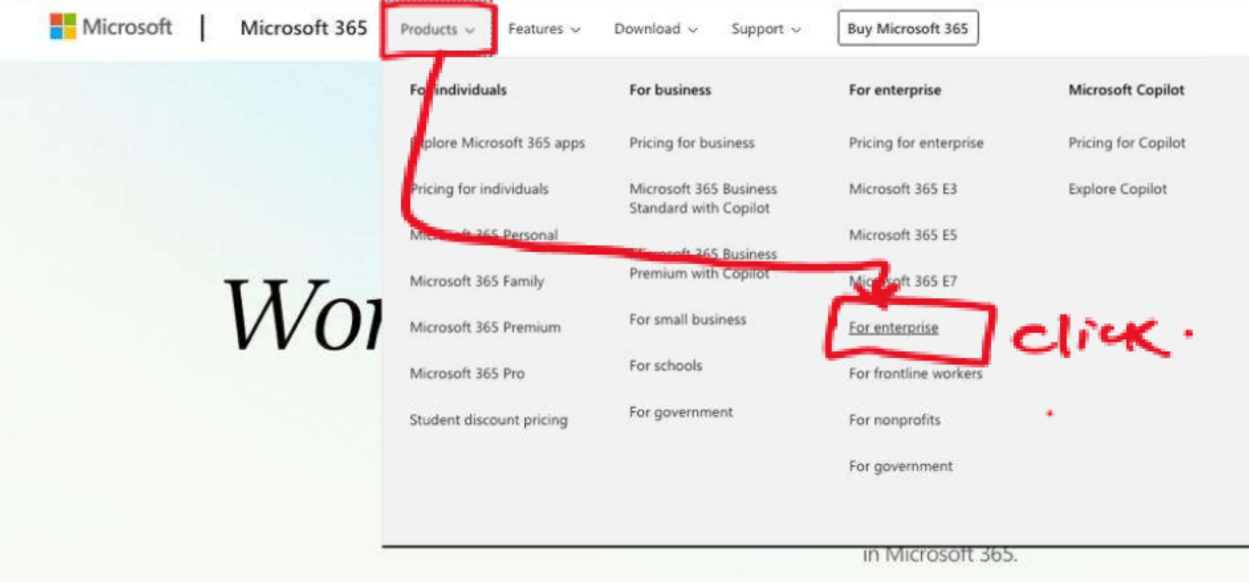
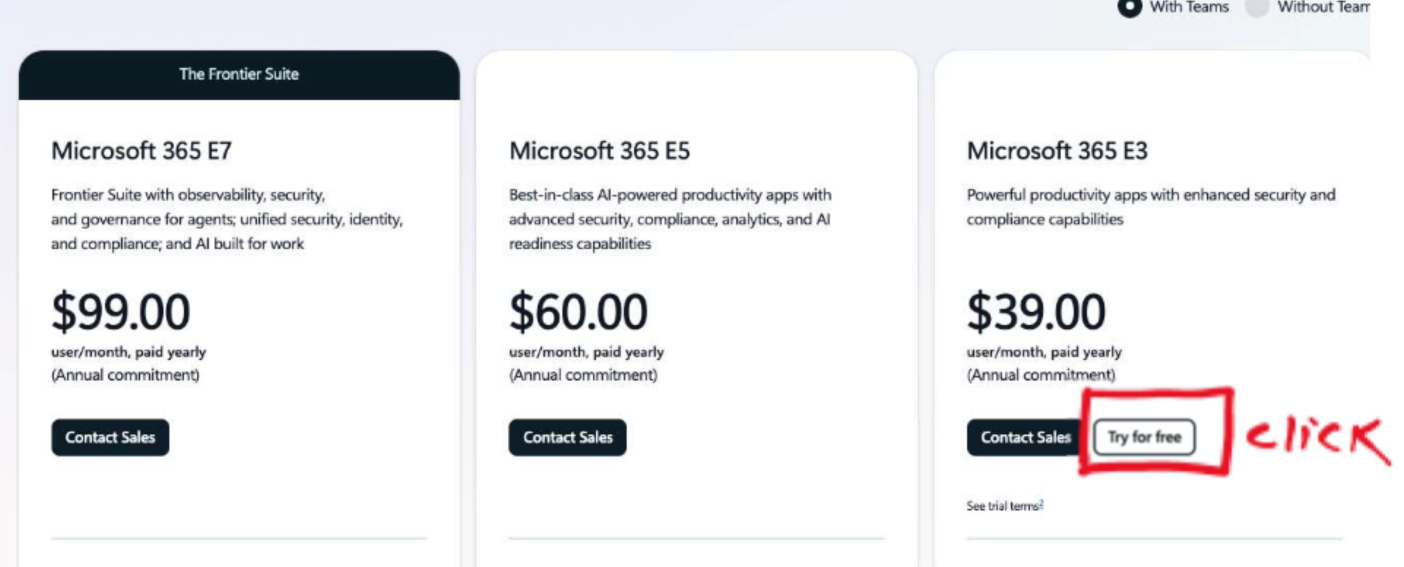
Step 2: Choose an eligible trial plan
Review the plans displayed on the website. Your guide uses Microsoft 365 E3 as its example, but the available plans and trial offers may differ.
Choose a plan only after checking its features, eligibility, and trial terms.

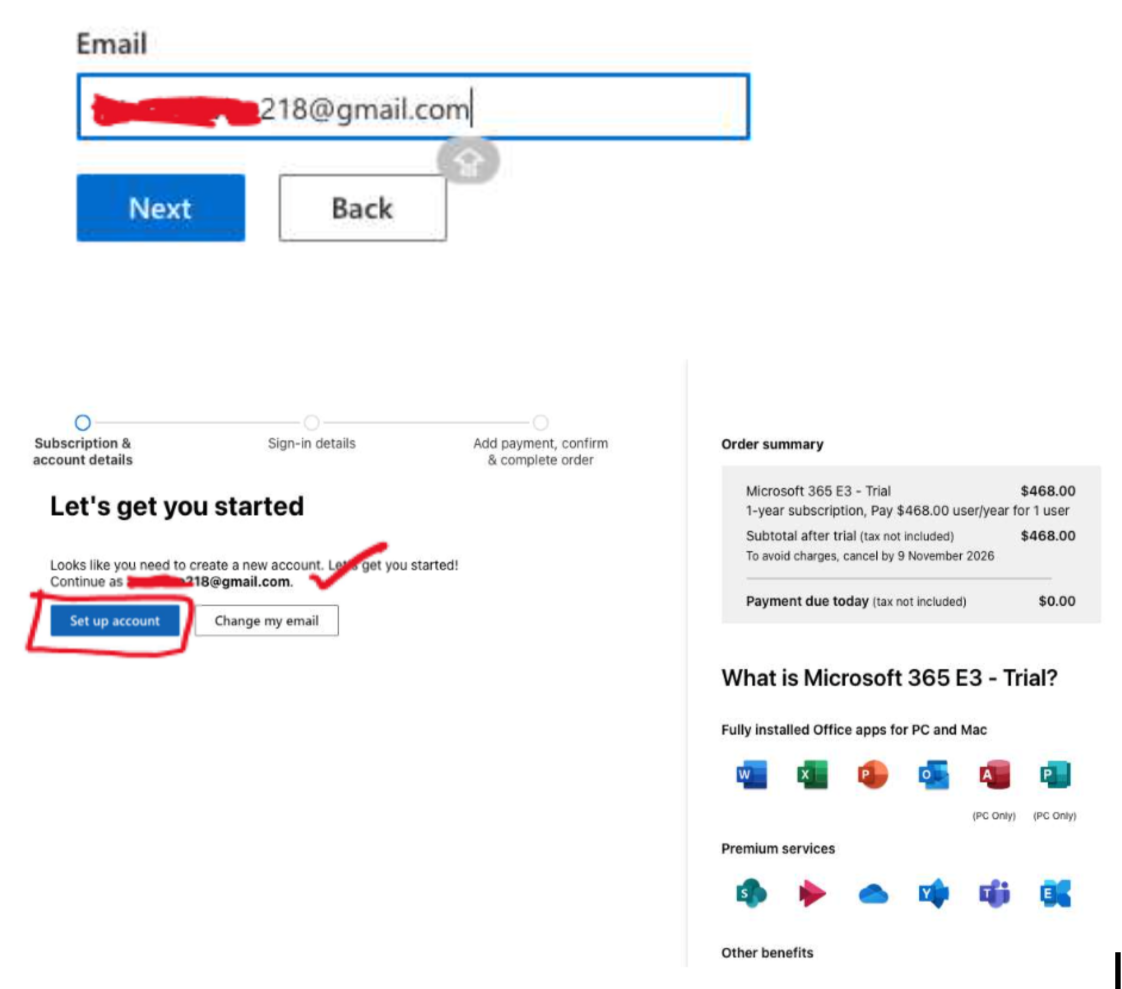
Step 3: Click Next and enter your email address
Follow the sign-up prompts and enter the email address requested by Microsoft. Complete any verification steps shown on the screen.
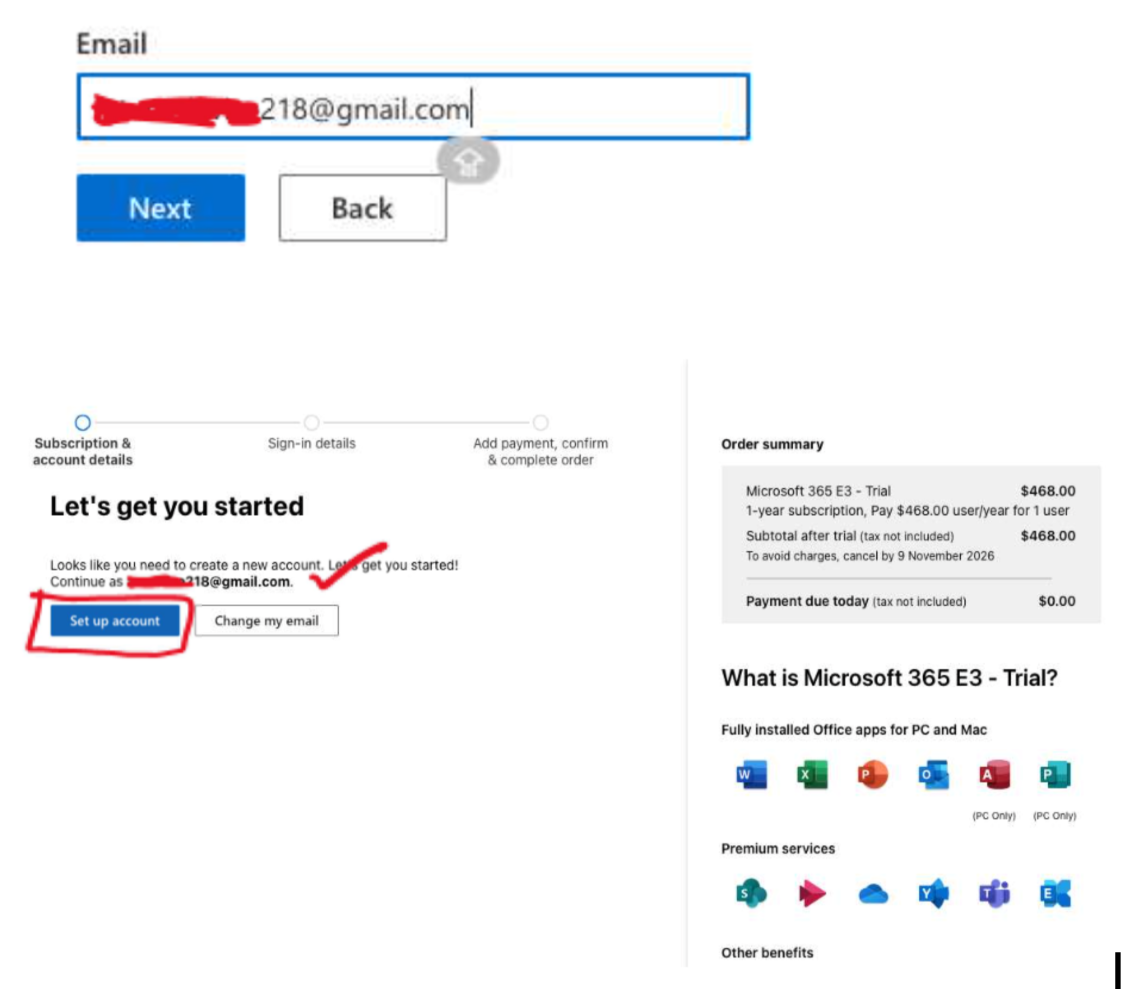
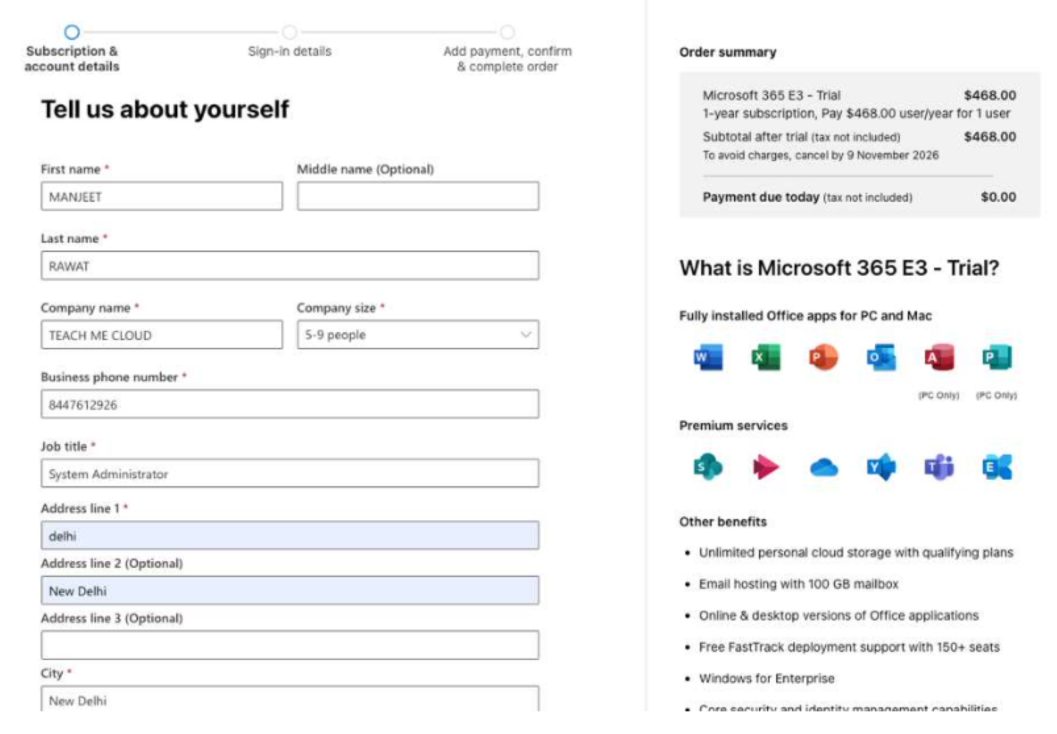
Step 4: Enter your personal or company details
Provide the requested information, which may include:
- Your name and contact details
- Company details, if applicable
- Billing address
- Other information required to set up the account
Check the details before continuing.
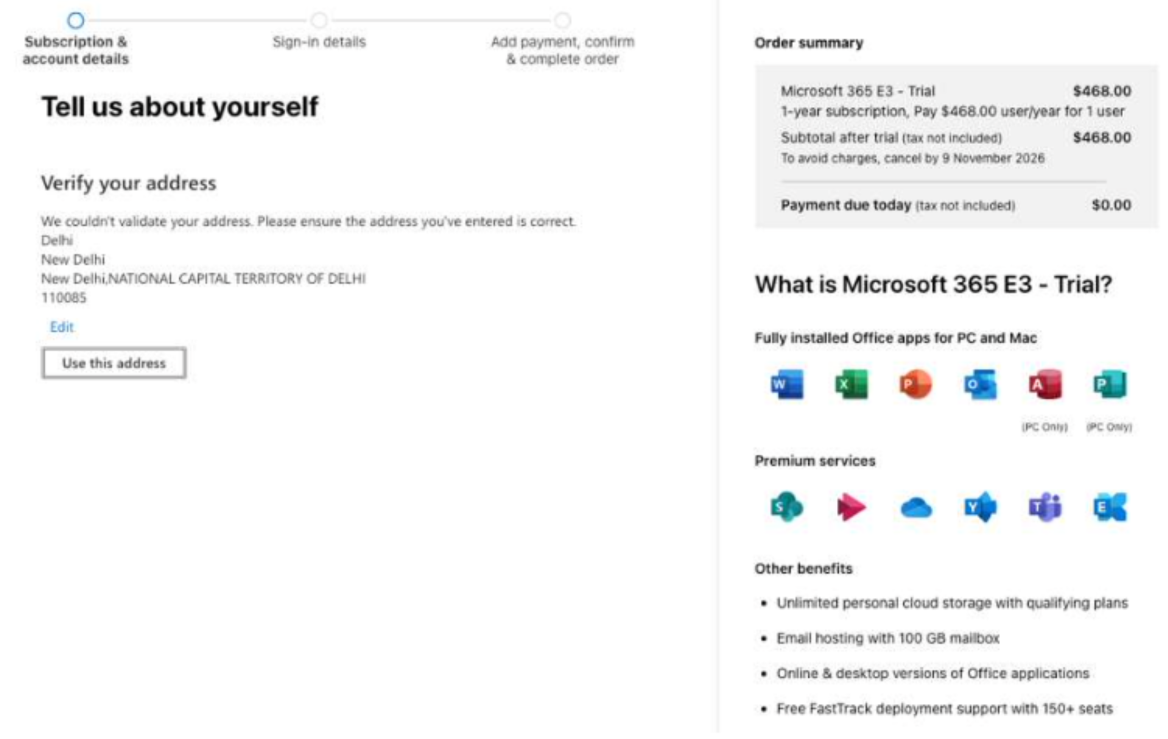
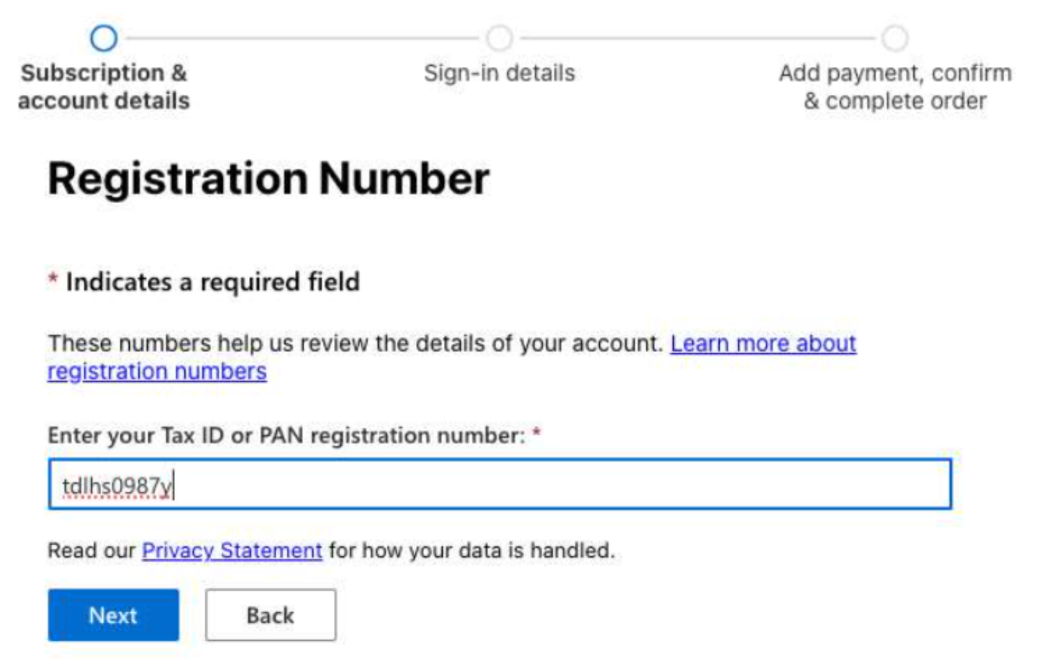
Step 5: Save your address and provide tax details
Save your billing address when prompted. If Microsoft requests tax information, enter the applicable details accurately.
The fields shown may vary depending on your location and the selected offer.
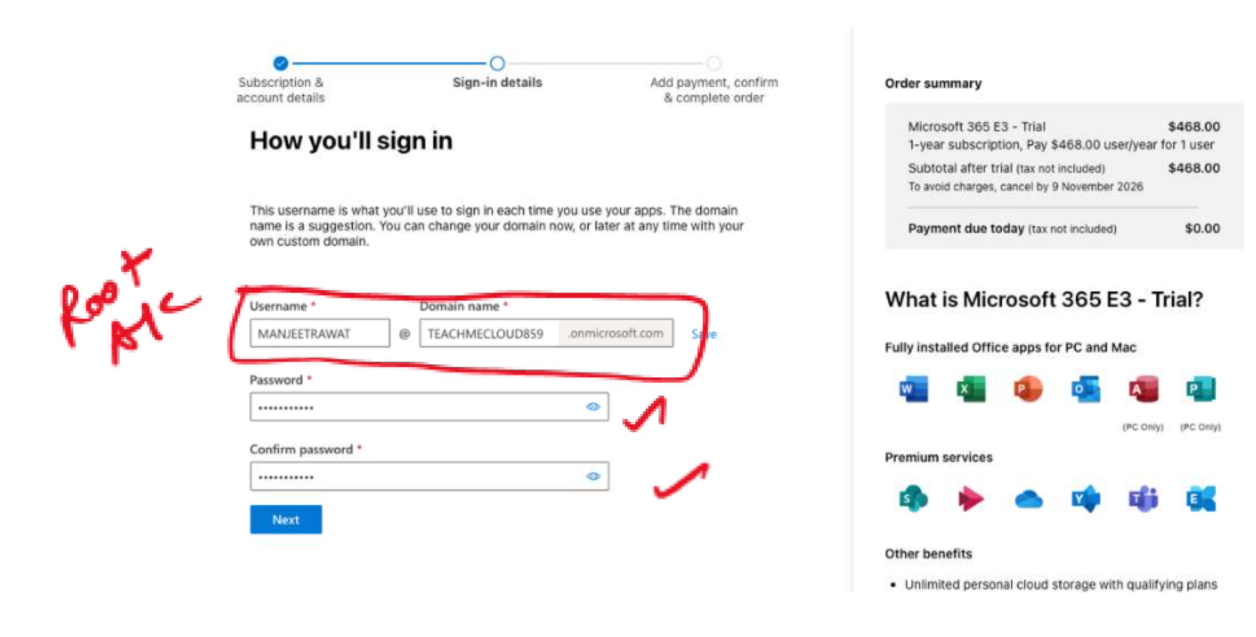
Step 6: Add payment details, if required
Your account setup may ask you to enter credit or debit card details. Review the trial duration, billing terms, renewal date, and cancellation instructions before submitting payment information.
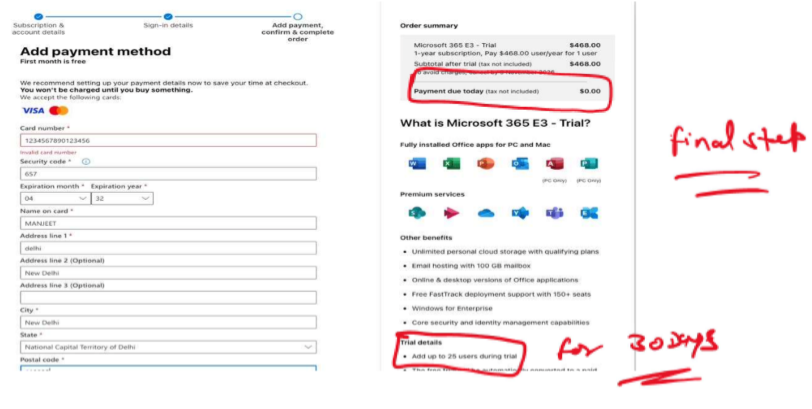
Step 7: Complete the account setup
Follow any remaining instructions on the screen. Once the registration process is complete, follow Microsoft's setup prompts to access the services included with your selected plan.
For official guidance, visit Microsoft's Microsoft 365 trial and purchase support page.
Things to Check Before Starting Your Trial
- Confirm that the offer is available in your country and that you meet its eligibility requirements.
- Read the trial duration and renewal terms carefully.
- Check whether a payment method is required.
- Keep your account and billing information accurate.
- Understand how to cancel or turn off recurring billing if you do not want a paid subscription.
To review cancellation instructions, visit Microsoft's free trial cancellation support page.
Frequently Asked Questions
1. How do I create a Microsoft 365 free trial account?
Visit Microsoft's official website, select an eligible trial offer, and follow the sign-up instructions.
2. Is Microsoft 365 E3 always available as a free trial?
Not necessarily. Available plans and trial offers can change by location, eligibility, and Microsoft's current offers.
3. What details may be required to create an account?
You may need an email address, contact details, billing information, and a payment method. Additional details may be requested depending on the offer.
4. Do I need a credit or debit card?
Some trials require a payment method. Check the requirements and terms of the specific offer before proceeding.
5. Can I use a Gmail or Outlook email address?
The sign-up process may accept a personal email address, but requirements depend on the selected plan and account setup flow.
6. Is PAN or GSTIN required in India?
Your guide lists PAN or GSTIN as a prerequisite. Whether these details are required depends on the billing and tax information requested during your sign-up.
7. How long does the free trial last?
The duration depends on the specific offer. Check the trial period displayed by Microsoft before registering.
8. Will I be charged after the free trial?
You may be charged if the trial converts to a paid subscription and recurring billing remains enabled. Review the terms and renewal date carefully.
9. How can I cancel my Microsoft 365 free trial?
Follow Microsoft's official cancellation instructions and check the status of recurring billing to avoid unwanted charges.
10. Where can I get help with Microsoft cloud training?
Visit TeachMeCloud to explore its available IT training resources.
Conclusion
Creating a Microsoft 365 trial account involves selecting an eligible offer, entering the requested details, and completing the account setup process. Before you begin, check the plan's availability, payment requirements, and renewal terms.
For the most accurate information, always refer to Microsoft's official website and support documentation.
About TeachMeCloud
TeachMeCloud provides IT training resources. Visit www.teachmecloud.in to learn more.
Contact: support@teachmecloud.net | WhatsApp: +91-8447612926
 Launch your Graphy